Agents
What are Agents?
Firetiger Agents are autonomous LLM-driven workers that you can configure to manage your software systems. They are defined by a plan, run in response to triggers, and use a configured set of tools.
You can see your agents at /agents.
You can create as many Agents as you want. Treat agents as lightweight operators. It’s common to make agents for ad-hoc tasks, not just persistent operational roles.
What can Agents do?
Agents can be granted access to your telemetry and connected tools. They run in an isolated sandbox with shell scripting and Python. By connecting a HTTP Integration, you can give them the ability to access specific addresses over the network, too.
Typical uses of Agents include:
- Writing a weekly analytics report
- Investigating root causes of issues and posting updates on ticketing systems
- Running playbooks of remediation commands in response to issues
- Detecting and notifying code owners of issues
- Running post-deploy tasks
How to make an Agent
Firetiger Agents are created conversationally in a planning session. To make one, go to the Agent creation page, and describe what you’d like the agent to do in high-level terms.
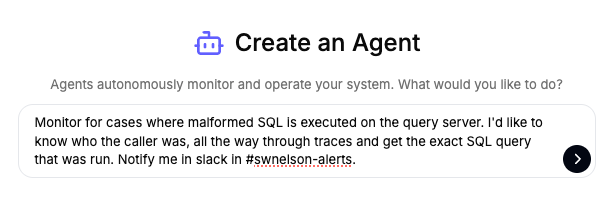
The agent is initially in a draft state as you refine its goals and objectives. The planner that you’re conversing with is able to use tools, and grant access to tools the actual realized agent instance it’s creating with you.
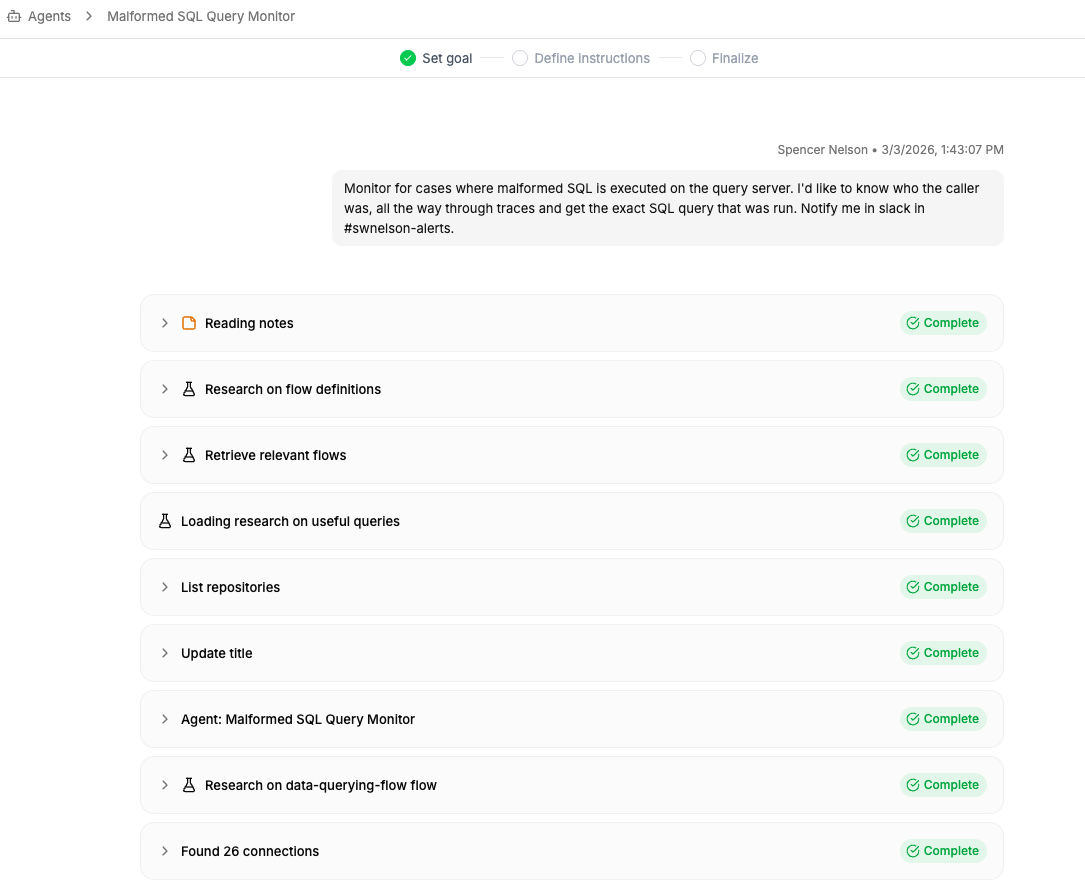
You can tell the planner to try executing the agent as much as you like to verify that it does what you expect, and then tell it to “enable” the agent to put it into live service.
The planner will take care of all the details of configuring your agent, including writing a detailed prompt, setting up the triggers that control when it runs, and granting it access to only the tools it needs.
Once it’s ready, it’ll summarize its results for you:
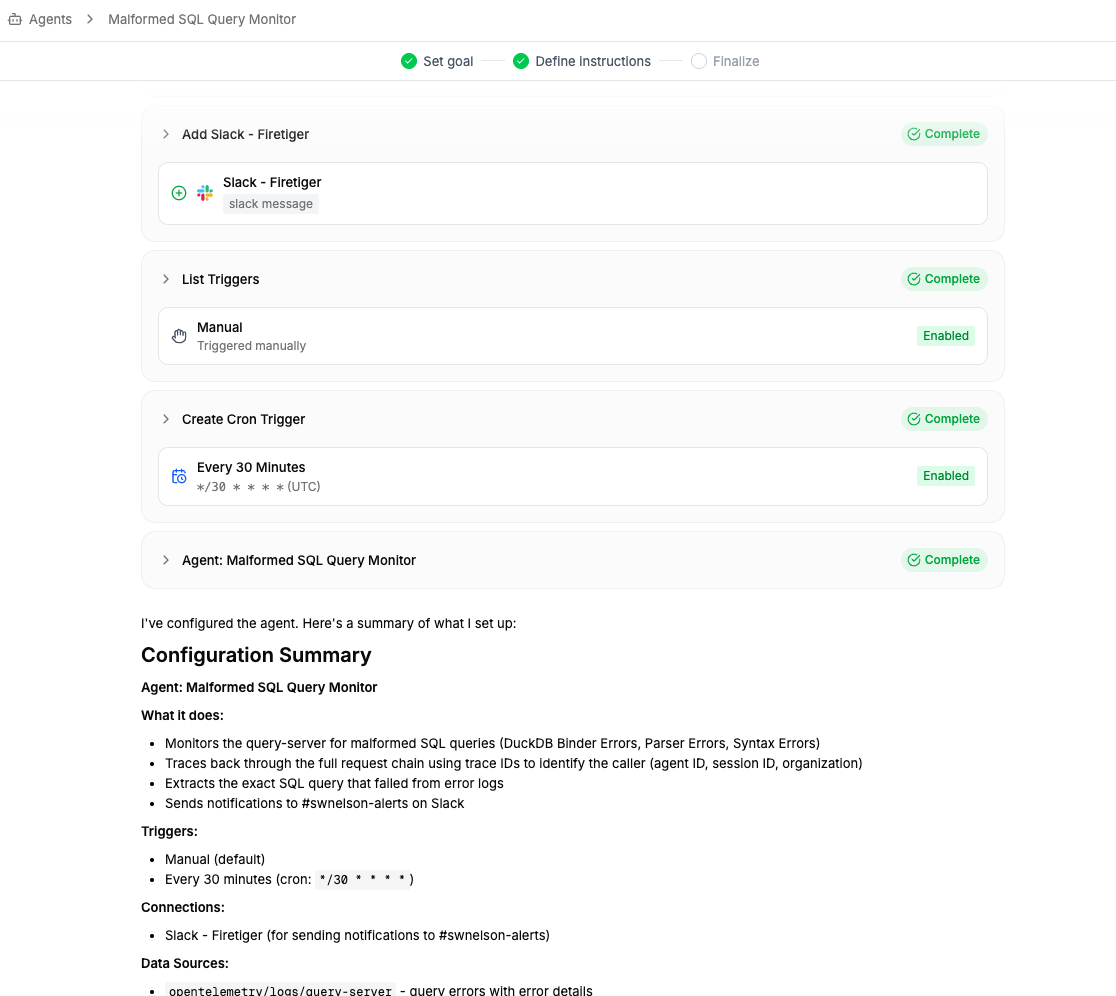
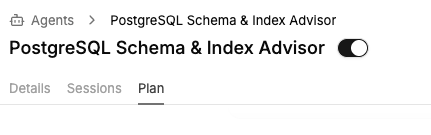
You can always come back to the same planner by going to the ‘plan’ tab under your configured agent:
When do Agents run?
Agents are run in response to Triggers. There are three sorts of triggers.
Webhook Triggers
All agents are automatically configured with a trigger ID that can be used to invoke them with a webhook. This invocation can include a message that can be passed to the agent which can have any text content.
The generated trigger ID is visible on the Agent Details page:
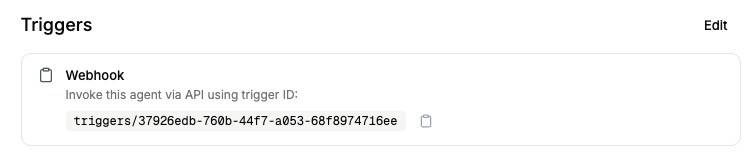
The webhook invocations need to be authenticated. See API keys for details on getting an API key.
For more details on running webhook triggers, see Running Agents With Webhooks.
Scheduled Triggers
Agents can be configured to run on a repeated schedule.
This is expressed as a cron schedule.
This is capable of expressing common intervals, like running every 15 minutes, every hour, or at the start of each week.
Post-Deploy Triggers
Agents can be configured to run after a particular bit of code is shipped in a Deployment. Post-Deploy triggers require a GitHub Integration. They are configured to watch for a particular Git commit (or any of its descendants), in a particular repo, for a particular environment. When that commit-repo-environment triplet is first seen, the trigger will fire, with an optional delay.
This can be used to set up sophisticated post-deploy orchestration workflows, like poking a new API and watching the chain of logs in a real production service.
Viewing Agent runs
You can see the individual executions of your agent under the Sessions tab:
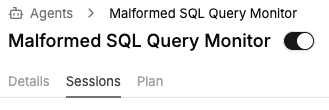
These sessions can finish in one of three ways:
- “Done” sessions are ones that completed their mission successfully. Hooray!
- “Issue Found” sessions are ones that detected and reported some operational issue. They might have still accomplished their goal, but they flagged something for the Issue subsystem to triage.
- “Aborted” sessions are ones that, for some reason, were unable to do their job. This could be a data access issue or broken connection, and these usually indicate that some human intervention is needed to fix up the agent that ran the session.
In any case, you can click into a session to see the chain of actions and thoughts that the worker took, including any queries and tool uses. This can be helpful for observing what the agents are actually doing or debugging their behavior.
Agent memory
Each unique agent has its own “notebook” of memories. It can use this to remember things across execution runs. It will automatically use it to identify issues with queries, learn, and adapt to how your systems work.
Sometimes it can be useful to encourage the agents to use their notebook more, particularly if you find they are repeatedly hitting an issue. Do this by chatting with the planner agent - tell it about the problem, and tell it to steer the executor agents to use their notebook more often.